New York: Beginner Computer Help for the Over 60 Crowd
New York: Beginner Computer Help for the Over 60 Crowd
Computers can feel like… a lot.
Not because they’re impossible.
But because when you turn one on, it feels like there’s too much going on at once:
Files
Folders
Apps
Updates
Pop-ups
Notifications
And no one really explains it in a simple way.
So you end up thinking:
“I don’t understand any of this.”
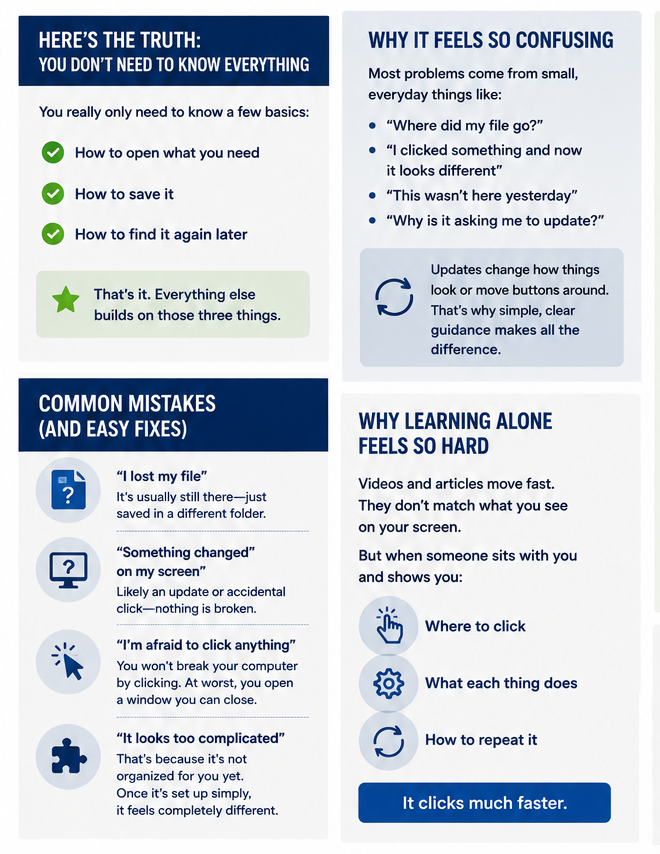
Here’s the Truth: You Don’t Need to Know Everything
This is where most people get stuck.
They think:
“I need to learn the whole computer.”
You don’t.
You really only need to know a few basic things:
How to open what you need
How to save it
How to find it again later
That’s it.
Everything else builds on those three things.
Why It Feels So Confusing
Most computer problems don’t come from big issues.
They come from small, everyday things like:
“Where did my file go?”
“I clicked something and now it looks different”
“This wasn’t here yesterday”
“Why is it asking me to update?”
And updates don’t help—they often change how things look or move buttons around, which makes it feel like you’re starting over.
That’s why so many people look for beginner computer help across New York.
Not because it’s too hard…
But because it’s never explained clearly.
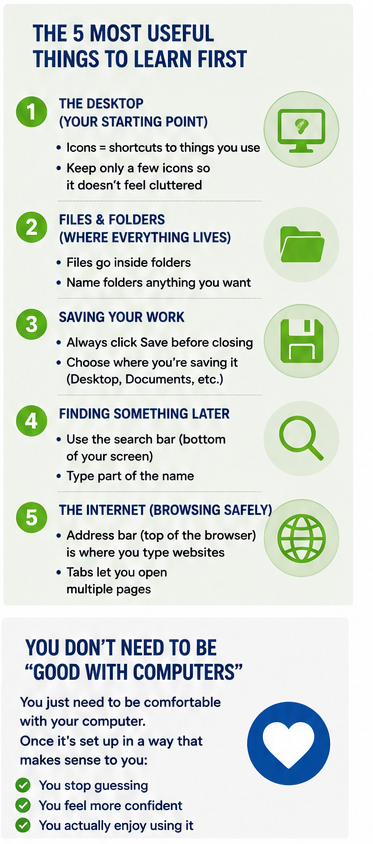
The 5 Most Useful Things to Learn First
If you focus on just these, everything gets easier:
1. The Desktop (Your Starting Point)
This is your “home screen.”
Icons = shortcuts to things you use
You can add or remove items to keep it simple
👉 Tip: Keep only a few icons so it doesn’t feel cluttered.
2. Files & Folders (Where Everything Lives)
Think of folders like drawers.
Files go inside folders
You can name folders anything you want
👉 Tip: Create simple folders like:
“Pictures”
“Bills”
“Important Documents”
3. Saving Your Work
This is one of the biggest frustrations.
Always click Save before closing
Choose where you’re saving it (Desktop, Documents, etc.)
👉 Tip: Name your files clearly
Example: “Doctor Appointment April 2026” instead of “Doc1”
4. Finding Something Later
If you saved it but can’t find it:
Use the search bar (bottom of your screen)
Type part of the name
👉 Tip: This is faster than clicking through folders.
5. The Internet (Browsing Safely)
Using the internet is simple once you know:
The address bar (top of the browser) is where you type websites
Tabs let you open multiple pages
👉 Tip: Stick to familiar websites and avoid clicking random pop-ups.
Common Mistakes (And Easy Fixes)
“I lost my file”
👉 It’s usually still there—just saved in a different folder
“Something changed on my screen”
👉 Likely an update or accidental click—nothing is broken
“I’m afraid to click anything”
👉 You won’t break your computer by clicking
(At worst, you open a window you can close)
“It looks too complicated”
👉 That’s because it’s not organized for you yet
Once it’s set up simply, it feels completely different.
Why Learning Alone Feels So Hard
Videos and articles move fast.
They assume you already understand certain things.
And when something doesn’t match your screen, it becomes frustrating quickly.
But when someone sits with you and shows you:
Where to click
What each thing does
How to repeat it
👉 It clicks much faster.
You Don’t Need to Be “Good with Computers”
You just need to be comfortable with your computer.
That’s a big difference.
Once it’s set up in a way that makes sense to you:
You stop guessing
You feel more confident
You actually enjoy using it
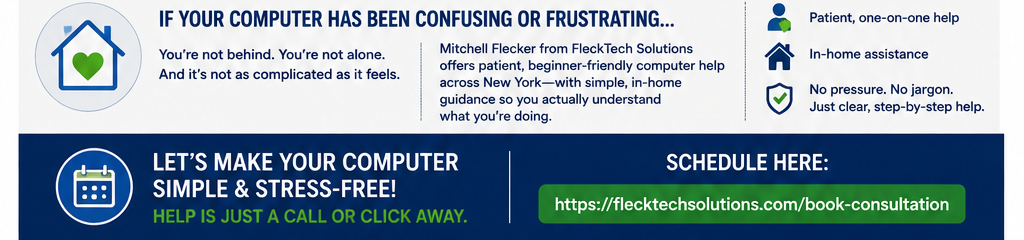
If Your Computer Has Been Confusing or Frustrating…
You’re not behind.
You’re not alone.
And it’s not as complicated as it feels.
Mitchell Flecker from FleckTech Solutions offers patient, beginner-friendly computer help across New York—with simple, in-home guidance so you actually understand what you’re doing.
No pressure. No tech jargon. Just clear, step-by-step help.